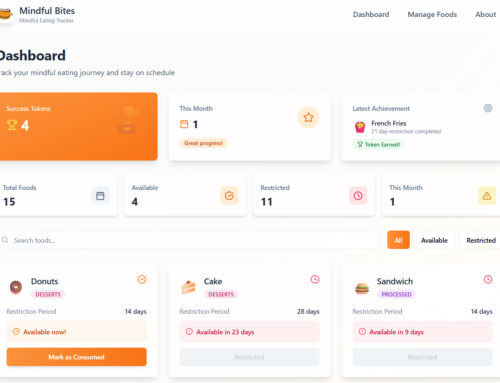

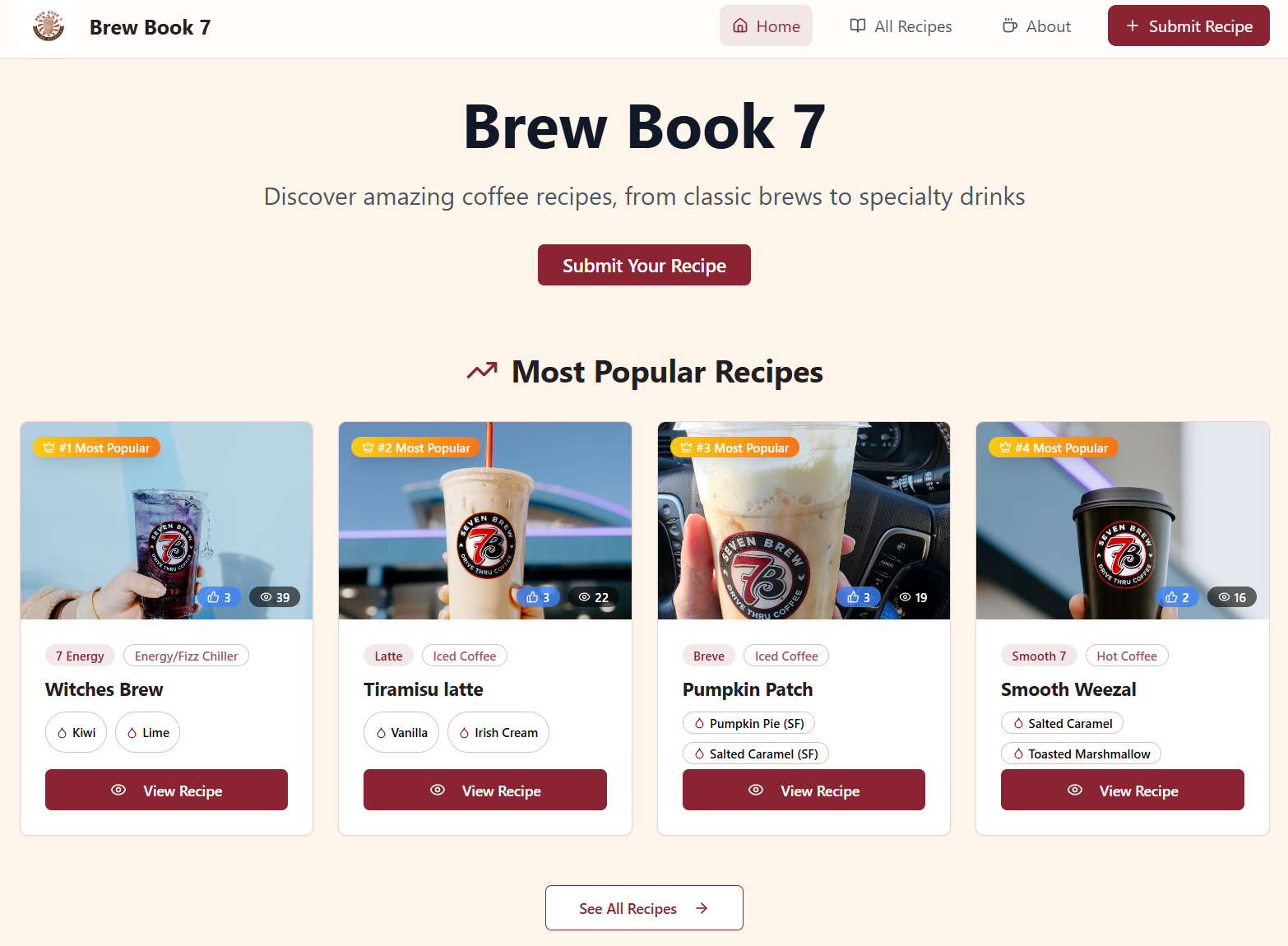
We love coffee in general, and got introduced to the wonderful world of 7Brew in 2025! It’s easier than ever to bring ideas to life these days, so we were inspired to make an app that houses a database of 7Brew drink recipes for everyone to submit, share, view and vote for your favorites on! The app is completely free, but does require a basic login to submit recipes.
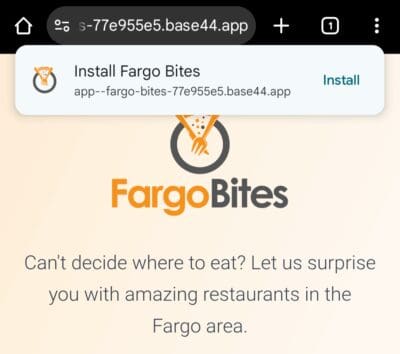
Check out our web app with the link below. You can use the app right in your browser, or you can install the app on your phone or device like it’s a normal app.
Google Chrome – Android/PC

Apple
Adding a web app to an Apple device, whether an iPhone, iPad, or Mac, involves creating a shortcut to a website that behaves like a native application.
For iPhone and iPad (iOS/iPadOS):
- Open Safari or Chrome: and navigate to the desired website.
- Tap the Share icon: (a square with an arrow pointing upwards) in the browser’s toolbar.
- Scroll down the share sheet: and select “Add to Home Screen.”
- Edit the name: of the web app if desired, then tap “Add.”
- The web app icon will appear on your Home Screen, and tapping it will open the website, potentially in a full-screen, app-like view if the website supports Progressive Web App (PWA) features.
For Mac (macOS Sonoma and later):
- Open Safari: and navigate to the desired webpage.
- From the menu bar, choose File > Add to Dock, or click the Share button in the toolbar and select “Add to Dock.”
- Type the name: you want to use for the web app, and adjust the URL or icon if needed.
- Click “Add.”
- The web app is saved to the Applications folder and can be launched from the Dock, Launchpad, or Spotlight. These web apps function like standalone browsers dedicated to that specific website, without Safari’s usual interface elements like the address bar or tabs.